3.2.1 Geoprocessing Tools
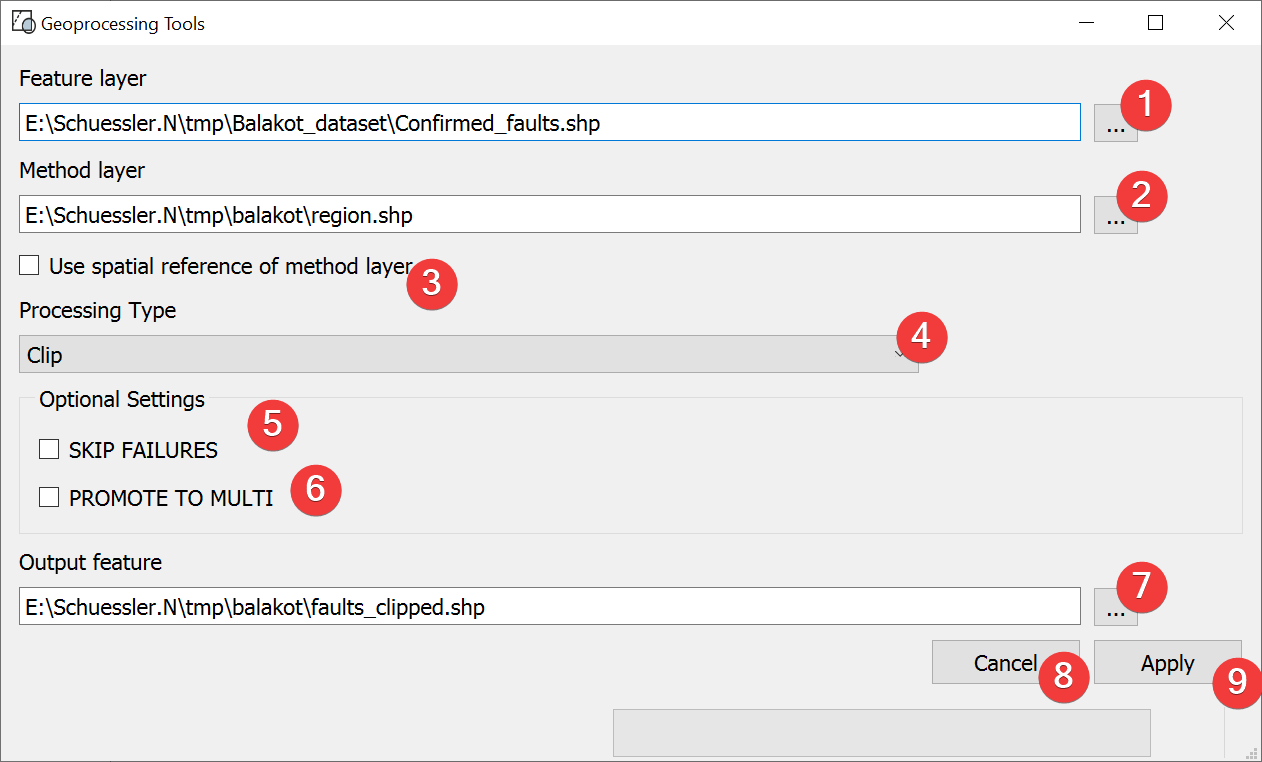
Fig. 3.5 Geoprocessing Tools Widget
Process vector files.
3.2.1.1 Usage
- Select a feature layer. You can either type in the absolute file path yourself or pick onewith a dialog (1).
- Select a method layer. You can either type in the absolute file path yourself or pick onewith a dialog (2).
(Optional) Choose to create the output in the spatial reference of the method layer (3)
Pick the processing type (4)
(Optional) Choose to proceed with the process if failures are encountered (5)
(Optional) Choose to promote to multi (6) (e.g. polygon -> multipolygon)
- Select the output file. You can either type in the absolute file path yourself or pick onewith a dialog (7).
Start the process (9)
(2) Closes and resets the widget.
3.2.1.2 Processing Types
Clip
Returns parts of the feature layer that are inside the method layer.
Erase
Returns parts of the feature layer that are outside the method layer.
Intersect
Returns parts of the feature layer that are inside the method layer and adds attributes from the method layer.
Symmetrical Difference
Returns parts of the feature layer and the method layer that do not overlap.
Union
Returns all parts of the feature layer and the method layer with differing values if they overlap. If the features overlap they get both attributes.
3.2.1.3 Information
Geoprocessing Tools only supports Shapefiles (.shp) as of now.
3.2.1.4 Input and Output
Input |
Feature layer (.shp) Method layer (.shp) |
Output |
Processed Shapefile (.shp) |