4.1.3 Logistic Regression (LR)
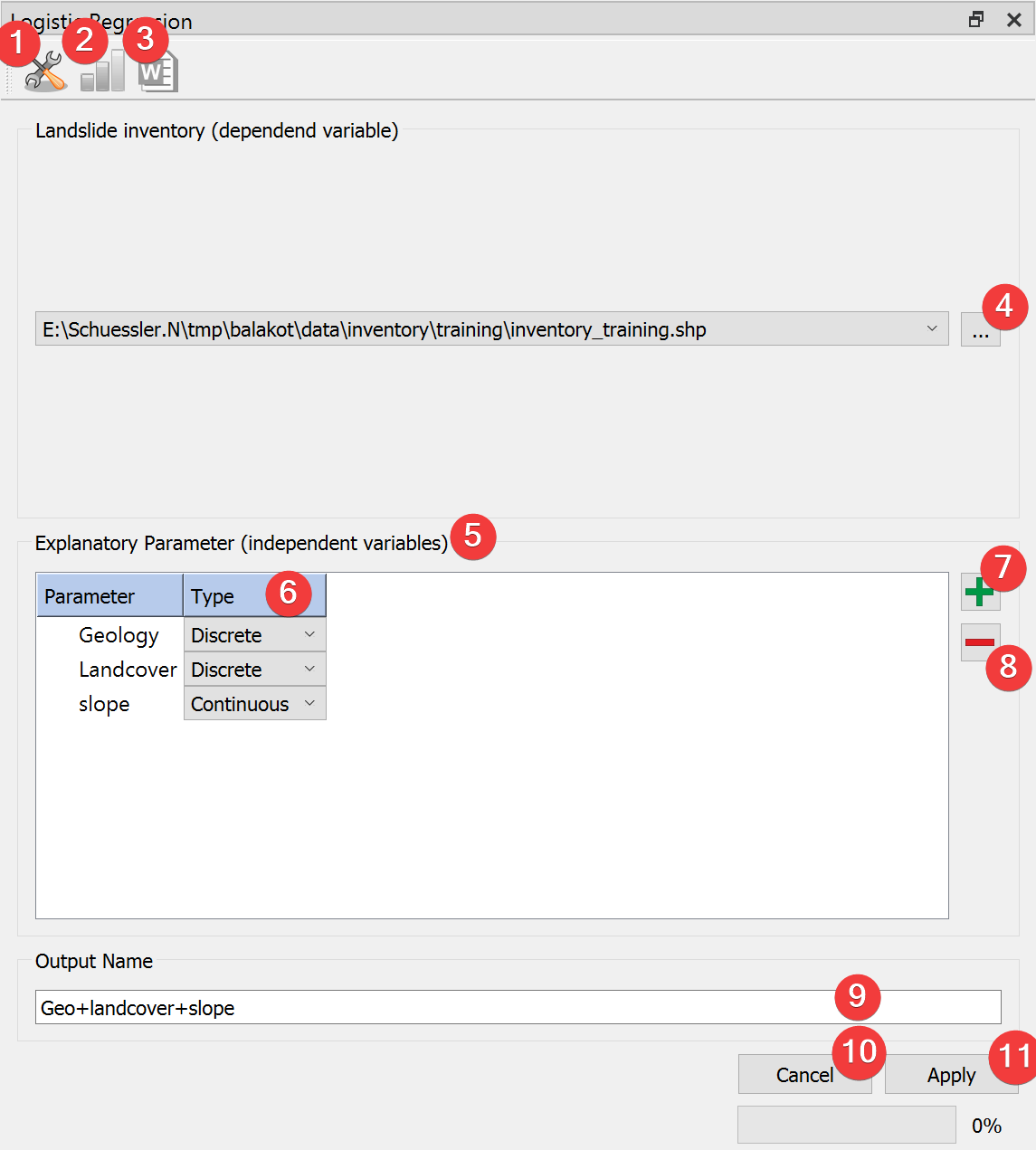
Fig. 4.6 LR Widget
Run Logistic Regression (LR) analysis.
4.1.3.1 Usage
- Add a vector file with the landslide inventory. You can pick one from the project with thecombobox or select it from your PC with a dialog (4).
Add (7) raster datasets to the explanatory parameters (5)
Set the type (6) of each parameter using the combobox
(Optional) Adjust the calculation settings in the advanced settings (1)
Provide an output name (9)
Start the calculation (11)
Remove raster datasets from the calculation by clicking (8).
After the calculation finished you can view the results (2).
Support for automatically writing a report (3) is coming soon.
4.1.3.2 Advanced Settings
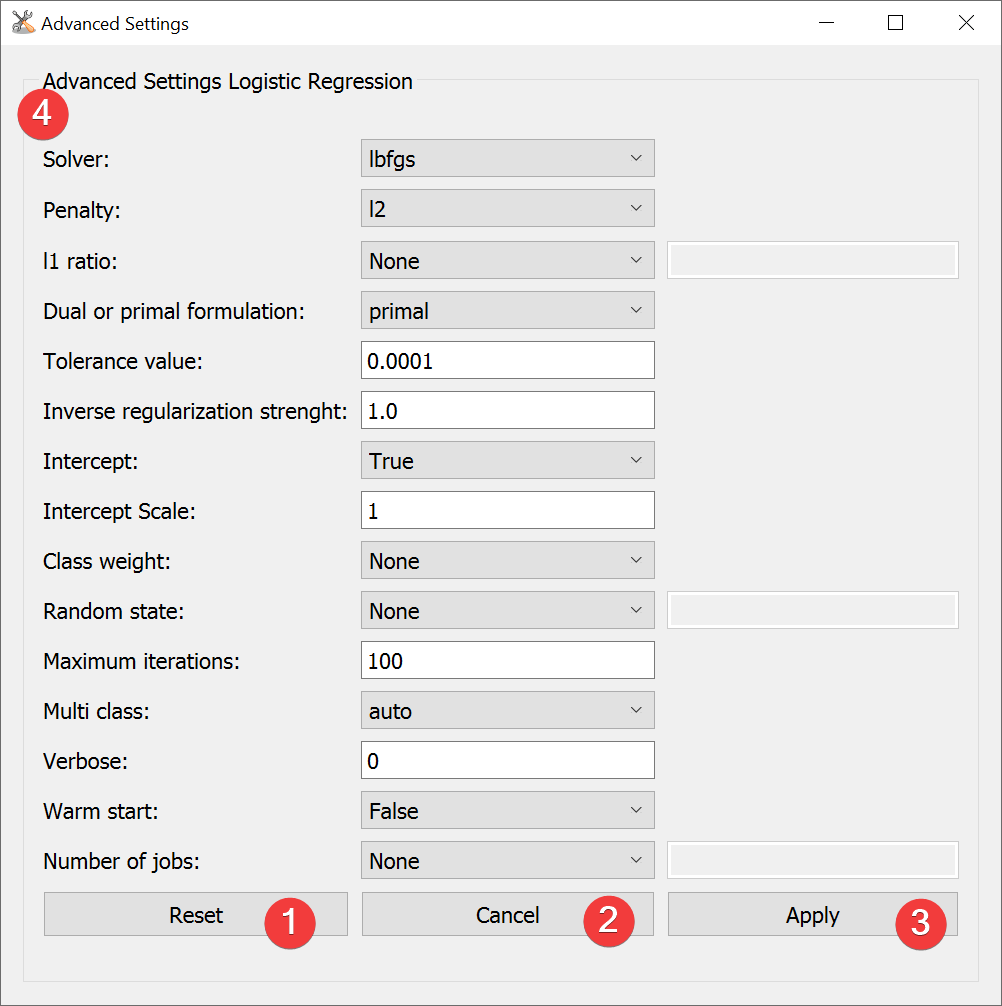
Fig. 4.7 LR Advanced Settings Widget
To learn more about the individual parameters (4) see scikit-learns LogisticRegression documentation. For a brief overview hover your mouse cursor over the parameters name.
After changing the values you can reset (1) them to defaults or apply (3) them.
Close and cancel (2) at any time without making changes to the settings.
Edit the defaults by changing [DEFAULT] in *LSAT Folder*/core/widgets/LogisticRegression/configLogReg.ini.
4.1.3.3 Information
LSAT PM uses scikit-learns LogisticRegression to apply LR to spatial data.
Changes made to the settings are persistent.
4.1.3.4 Input and Output
Input |
Raster dataset(s) (.tif) Feature dataset (Vector file) |
Output |
LR model raster dataset (.tif) Output path: /results/LR/rasters/*output name*_lr.tif LR model information (.npz) Output path: /results/LR/tables/*output name*_tab.npz LR model (.pkl) Output path: /results/LR/tables/*output name*_model.pkl |