2.2.7 Raster Attribute Table

Fig. 2.13 Raster Attribute Table Widget
Widget to display and modify the Raster Attribute Table (RAT).
2.2.7.1 Overview
Clicking on the pen and paper (1) enables editing the RAT (7), adding new fields (2) and deleting existing ones (3).
To add a new field press the button (2) opening a dialog.
Delete a field by clicking the delete button (3). LSAT requires confirmation before deletion.
After modifying the RAT (7) save the changes made (4).
Export the RAT (7) as an excel file (5).
To open the raster in the Raster Info Widget click (6).
2.2.7.2 New field dialog
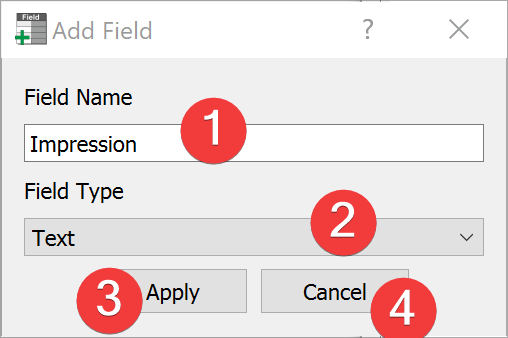
Fig. 2.14 New field dialog
Name the field (1), define its type (2) and confirm your choices (3) to add the new field to your RAT. You can cancel (4) the dialog at any time.
2.2.7.3 Information
After importing a raster dataset LSAT will create a basic RAT for Non-float raster datasets with under 500 unique values if they don’t have one.
Certain fields can not be modified or deleted (e.g. VALUE, COUNT).