2.1.1 New Project
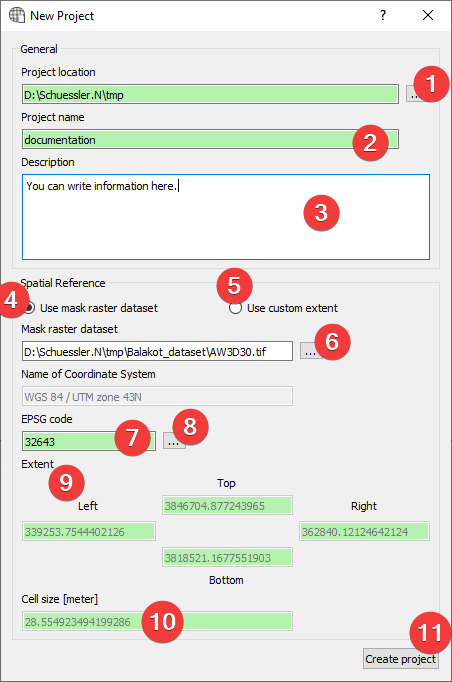
Fig. 2.1 New Project Widget
Widget to create new LSAT projects.
2.1.1.1 Usage
Specify the project location by picking a folder (1)
Name the project (2)
(Optional) Provide a description (3)
- Provide spatial reference (2 Options):
- Use a mask raster (4).Specify a mask raster dataset (6). This will attempt to auto fill EPSG code (7), Extent(9) and cellsize (10)
- Use a custom extent (5)Fill EPSG code (6), Extent (9) and cellsize (10) by hand. Open theCoordinate System Widget (8) to help with the EPSG Code.
- Create a new project (11) (If you provided a mask you may
To achieve the best results in later analyses use a mask raster dataset.
LSAT PM only supports mask raster datasets with square cells.
You can later change the project description with the Project Info Widget
Some raster datasets use underscores instead of spaces in the name of the coordinate system. If that is the case you can still use it as a mask but will have to provide the EPSG Code (7) by hand (8) using the Coordinate System Widget.
2.1.1.2 Coordinate System Widget
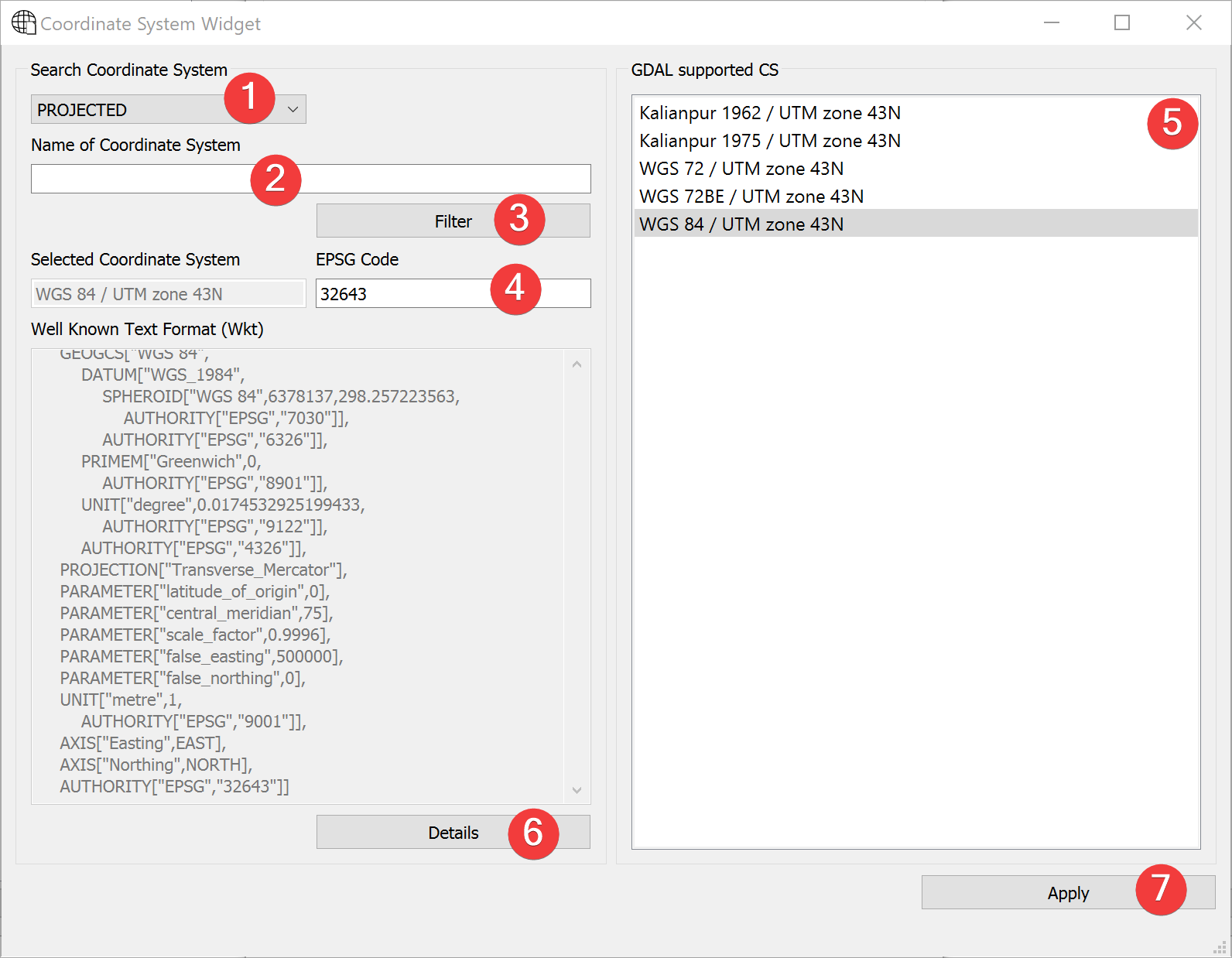
Fig. 2.2 Coordinate System Widget
With the coordinate system widget you can alter the EPSG code the project uses.
Usage
Use the combo box (1) to choose either projected or geographic coordinate systems.
- Select the coordinate system (2 Options):
Type the EPSG Code into (4) and press Enter.
- Type the name of the coordinate system into (2) and press Enter or click (3) and then clickon the coordinate system in (5).
Click (7) to use the selected coordinate system.
Clicking on Details (6) will open epsg.io with information about the coordinate system. If there is no EPSG Code (4) it will open epsg.io itself.
2.1.1.3 Mask raster dataset import
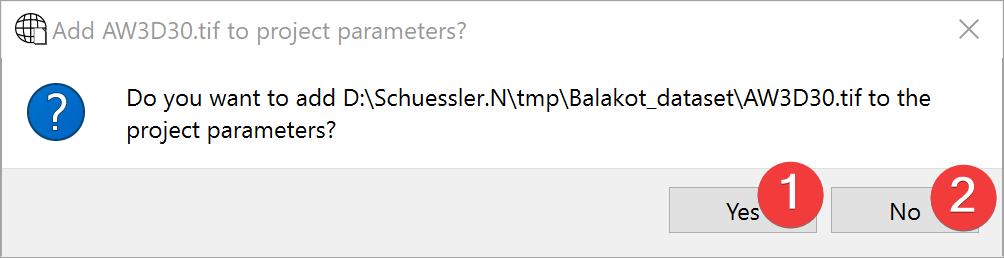
Fig. 2.3 Mask raster dataset import dialog
Usage
Choose to import the mask (1) or don’t (2).
If you import the mask raster dataset the raster import dialog opens, guiding you through the process.