– _combine:
3.4.1 Combine
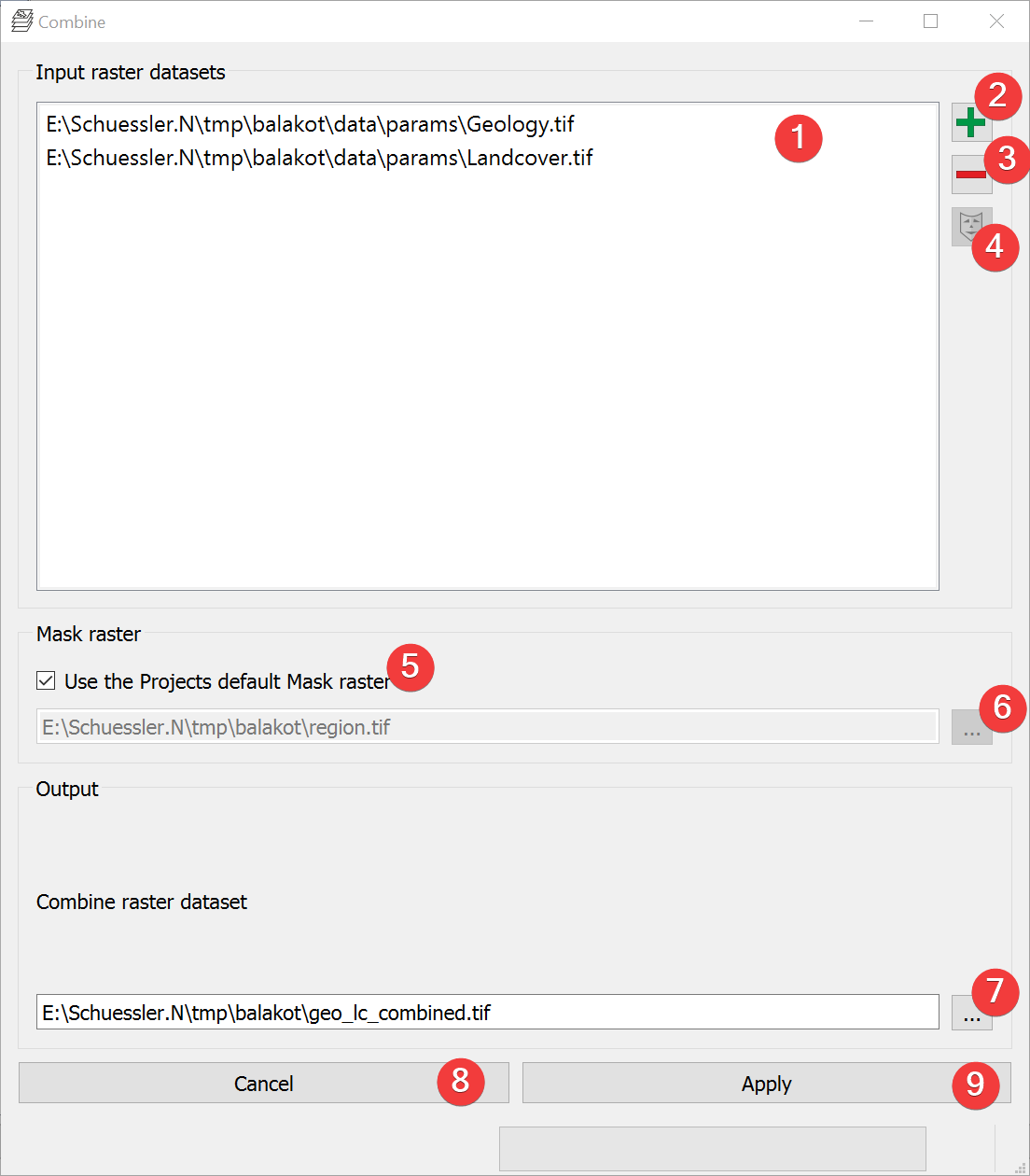
Fig. 3.14 Combine Widget
Creates a raster dataset based on unique combinations of input raster datasets.
3.4.1.1 Usage
- Add at least two raster datasets. You can either drag and drop the rasters from yourfile manager into the input list (1) or select them from your PC (2).
- (Optional) Change the mask raster dataset from the projects default by unchecking (5) andeither picking an input raster by selecting it in the list (1) and clicking (4) or pick amask from your PC (6).
- Select the combined raster output location. You can either type in the absolute file pathyourself or pick one with a dialog (7).
Start the calculation (9)
If you want to use the output raster in your LSAT Project you need to import it using the Import Raster Widget.
If any raster has noData the output raster will also have noData at that location.
3.4.1.2 Information
The input raster dataset values that lead to the output values are stored in the outputs Raster Attribute Table (RAT).
3.4.1.3 Input and Output
Input |
Input raster datasets (.tif) Mask raster dataset (.tif) |
Output |
Combined raster dataset (.tif) |